
How I Set Up Cost-Effective AWS Monitoring for My WordPress Site (And Why You Should Too)
When I launched my AWS-hosted WordPress site, I decided to set up monitoring before anything could go wrong. Most people wait until there’s a problem, but I wanted visibility from day one. In this post, I’ll share exactly how I implemented cost-effective AWS monitoring using CloudWatch and SNS alerts—focusing on what worked, what I learned, and why even small sites benefit from early monitoring. If you’re running WordPress on AWS, my story might help you avoid common pitfalls and build a reliable foundation for your own site.
Setting up monitoring for your AWS-hosted WordPress site is essential—even before your site gets busy. In this guide, you’ll learn how to configure cost-effective AWS monitoring using CloudWatch and SNS alerts. Whether you’re a cloud beginner or a solo site owner, these practical steps will help you keep your WordPress environment secure and reliable.
Environment Overview & Diagram
Before setting up alerts and backups, I designed a minimal AWS monitoring baseline for my WordPress site using only native AWS services.
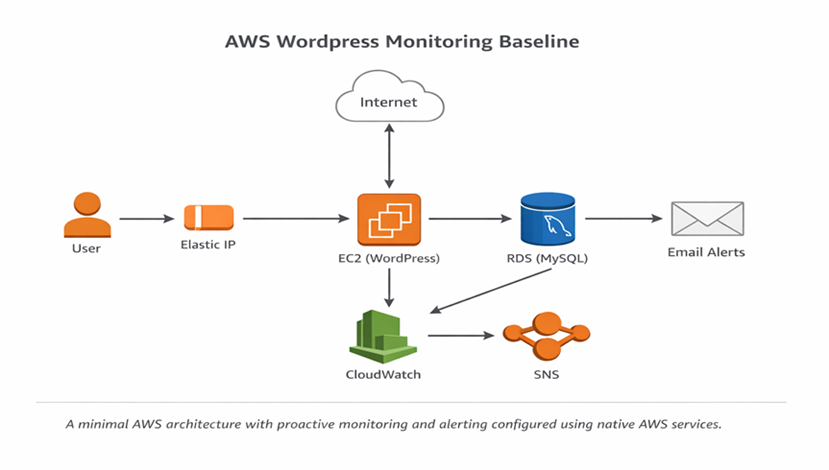
1Figure: AWS WordPress monitoring baseline showing EC2, RDS, CloudWatch metrics, and SNS-based alerting.
This stack is intentionally simple:
- EC2 (t3.small): Hosts WordPress
- RDS (MySQL): Sized for early-stage usage
- Elastic IP: Attached for consistent access
- Default VPC: No custom networking
- No autoscaling or load balancer (yet)
This straightforward architecture proves that effective AWS monitoring for WordPress doesn’t require complex, enterprise-level solutions. Even small sites can benefit from early visibility and proactive alerts.
My AWS Monitoring Setup for WordPress
When it came to monitoring my AWS-hosted WordPress site, I prioritized simplicity and actionable signals over complex dashboards. Here’s exactly what I set up:
EC2 Monitoring with CloudWatch
- I enabled the default CloudWatch metrics for my EC2 instance (t3.small), focusing on CPU utilization and basic health checks.
- Instead of building custom dashboards, I made sure the essential metrics were reporting correctly, giving me immediate visibility into resource usage.
RDS Monitoring with CloudWatch
- For my RDS (MySQL) database, I verified that CloudWatch was tracking CPU usage, storage consumption, and database connections.
- Monitoring these built-in metrics helped me establish a baseline for normal database activity, so I could quickly spot any anomalies.
Key CloudWatch Metrics I Track
I started with built-in metrics that tell a clear story:
- EC2 CPU utilization
- RDS CPU and storage usage
- Network activity for baseline awareness
By focusing on these core AWS monitoring metrics, I can easily tell if my WordPress environment is under stress, behaving normally, or showing unexpected activity. Even with low traffic, setting up this baseline early has been crucial for peace of mind and future growth.
Setting Up SNS Alerts and Validating Monitoring
To make sure I’d be notified of any issues, I created an SNS topic to send email alerts whenever key thresholds were crossed—like high CPU usage or resource state changes. For an early-stage WordPress site on AWS, email-based alerts are simple and effective, keeping things cost-effective and easy to manage.
Since my site didn’t have real traffic yet, I simulated load and activity to test my monitoring setup. This helped me confirm that CloudWatch metrics were being tracked, alerts were delivered as expected, and thresholds behaved correctly. Validating your monitoring system is crucial—if alerts never fire, you won’t know if your setup actually works when it matters.
Keeping Monitoring Cost-Aware
One thing I quickly realized is that AWS monitoring costs can add up if you track every possible metric “just in case.” For my WordPress site, I made a point to keep things cost-effective by focusing only on what really matters.
Here’s how I kept my AWS monitoring affordable:
- I monitored only the core EC2 and RDS metrics—CPU, storage, and connections—that provide early warning of real issues.
- I avoided custom metrics unless absolutely necessary, relying on AWS’s built-in CloudWatch metrics for most needs.
- I used simple email-based SNS alerts instead of third-party notification tools.
- I regularly reviewed my estimated monthly costs using the AWS Pricing Calculator to avoid surprises.
This approach gives me the visibility I need to keep my WordPress environment reliable, without overspending—a key consideration for small sites and personal projects.
Why This Matters
A lot of small deployments skip monitoring because:
- “It’s just a test”
- “There’s no traffic yet”
- “I’ll add it later”
But later is usually after downtime, confusion, or missed signals.
By setting this up early, I now have:
- Confidence alerts will fire when needed
- A baseline to compare future growth against
- A foundation I can extend into autoscaling, load balancing, and cost controls later
Lessons Learned & Common Pitfalls
As I set up AWS monitoring for my WordPress site, a few important lessons stood out:
- Don’t Over-Monitor Early: It’s tempting to track every metric, but starting with just the essentials (like EC2 and RDS CPU, storage, and network activity) keeps things manageable and cost-effective.
- Set Clear Alert Thresholds: Vague or overly sensitive alerts create noise and can lead to alert fatigue. Simple, meaningful alarms are much more actionable.
- Test Your Backups: Scheduling backups isn’t enough—make sure you actually test restoring from them. A backup that hasn’t been verified can’t be trusted.
- Monitor Costs Alongside Performance: Regularly review your AWS monitoring costs using tools like the AWS Pricing Calculator. Cost visibility is just as important as uptime and performance.
This monitoring baseline isn’t “production perfect,” but it’s intentional, observable, and easy to improve as my site grows.
The setup is intentionally lean. As my WordPress site grows, I plan to:
- Expand alerting to cover more scenarios as traffic increases
- Set up cost monitoring and budgets for better financial control
- Make architectural improvements based on actual usage, not assumptions
For me, monitoring isn’t about overengineering—it’s about knowing what’s happening while there’s still time to react. This wasn’t about building the “perfect” AWS monitoring system, but about creating one that works for my needs.
If you’re running a small WordPress stack on AWS, I’d love to hear how you approach monitoring and backups. Share your experiences, tips, or questions in the comments below!
Further Reading:
- Official guide to metrics and alarms – AWS Docs
- How to monitor RDS databases – AWS Docs
- Setting up notifications and alerts – AWS Docs
- Reliable backup strategies for WordPress – UpdraftPlus Blog